There’s a report in your Shopify admin that most store owners have never opened. It’s called Searches with no clicks: the searches that did return products, and still didn’t get a single click. Shopify has been collecting it since September 2022. It’s a quieter kind of failure than an empty results page, and often a more useful one.
To fix failed searches, you first have to know which kind of failure you’re looking at. A search can fail because it found nothing, because it found the wrong things, because the shopper asked a question nobody answered, or because a product is missing the one detail they searched for. Each one needs a different fix. This post explains the four kinds, where to find them today, and how the Improvements screen in the new Lets panel we’re building turns each one into a fix you can approve.
Key takeaways
- “Failed search” covers four different problems: no results, no clicks, unanswered questions and missing product details. Each one has its own fix.
- Shopify reports searches with no results and searches with no clicks, but with a delay of up to 72 hours, and without the searches shoppers make in the suggestions dropdown.
- Baymard recommends applying a single clear correction automatically, with a notice. We do the same with clear typos, and add an undo for you.
- Fixes that need judgment, like which products to show first, should wait for your approval, with a preview of what shoppers will see.
- A fix is only finished when you can see what it changed, so the new panel keeps counting after you approve.
Four kinds of failed search, four different fixes
Our guide to finding and fixing zero-results searches covers the most visible kind. Here’s the full set, as the Improvements screen sorts them:
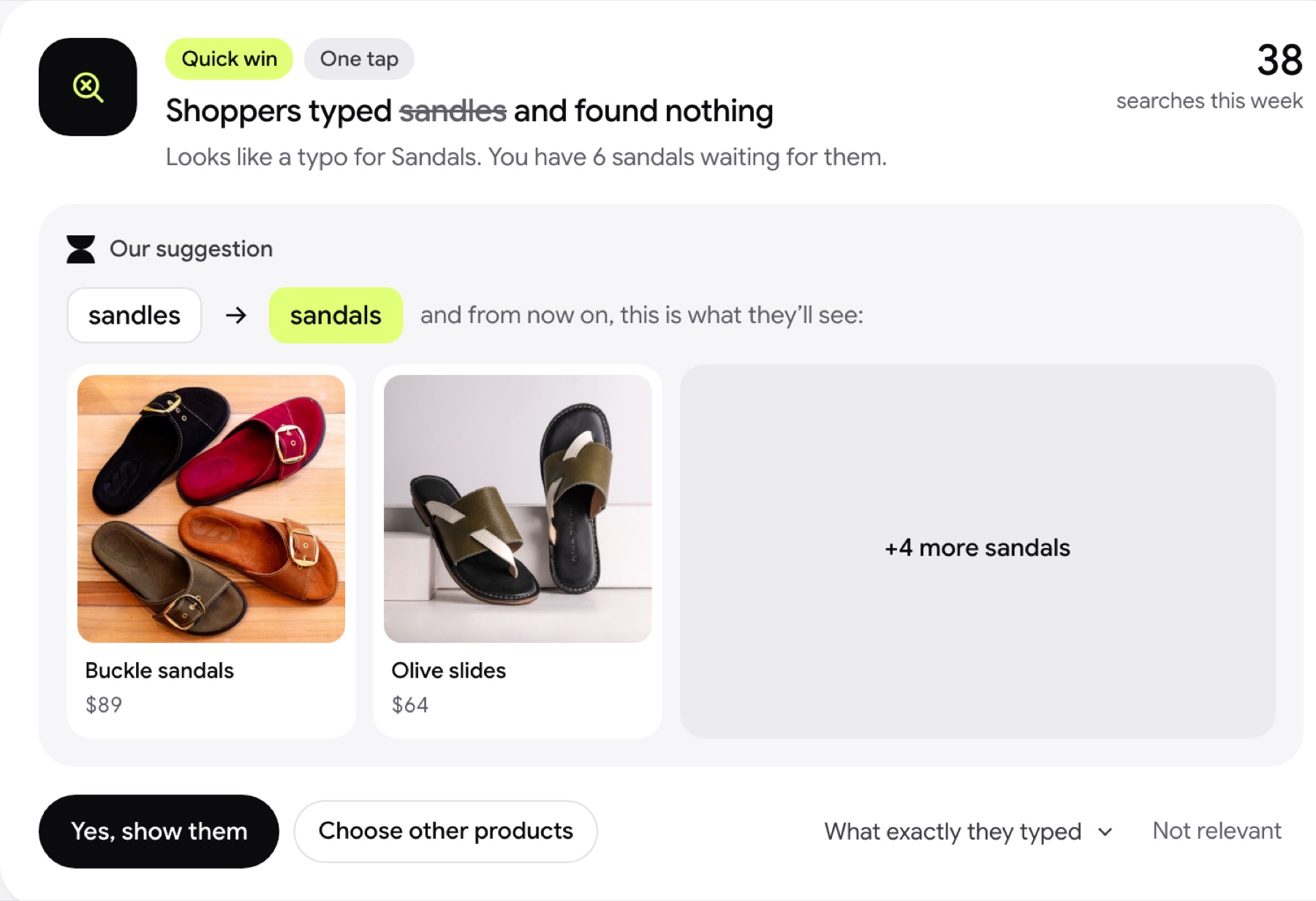
- Found nothing. The shopper typed “sandles” and saw an empty page. Usually a typo, a different word for the same thing, or a description your product names don’t match. The fix is to teach search what the shopper meant.
- Found results, but nobody clicked. The search returned products, just not the right ones, or not in the right order. A search for “summer dress” that shows sweaters first, because their description says “summer to fall”, is a typical case. The fix is to change what comes first.
- A question with no answer. “Is the linen dress lined?” The answer may live in a photo, a supplier sheet or your own head, but not on the page. The fix is to write the answer down where search can find it.
- A missing product detail. Shoppers filter by “gold” and miss earrings whose metal was never listed. The fix is to fill in the detail, not to add another synonym.
The distinction matters because the wrong fix wastes your time. A synonym won’t help a product that’s missing its material, and a better product description won’t help a search engine that gives up on one wrong letter. That second case is a question of how typo tolerance decides what to forgive, not of your catalog.
Where failed searches hide today
On Shopify, two reports cover the first two kinds. Searches with no results lists the terms that returned nothing; Searches with no clicks lists the terms that returned results nobody clicked. The Search & Discovery app shows both for the last 30 days, and the full reports live under Analytics > Reports. A few details from Shopify’s help center are worth knowing before you trust the numbers:
- They run late. Shopify says these reports have a delay of up to 72 hours, so a fix you made yesterday won’t show up yet.
- They skip the dropdown. Predictive search, the suggestions shown while a shopper types, isn’t included. If most of your shoppers pick a suggestion and never press enter, much of their searching is invisible here.
- They depend on your theme. Shopify-built themes are set up for search tracking. A heavily customized theme may not report everything.
On WooCommerce, WordPress keeps no search log of its own. Google Analytics 4 or a search plugin with a query log can fill the gap, as our zero-results guide explains. Neither platform has a report for questions nobody answered or details that are missing. Those you find by reading your search log line by line, or by listening to your support inbox.
Clear typos shouldn’t wait for you
Baymard Institute, which tests ecommerce sites with real users, found that about half of ecommerce sites build their “No Results” pages in ways that frustrate shoppers. One of its five recommended fixes is direct: when search finds exactly one likely alternative query, apply it automatically, and tell the shopper the original search had no results. A shopper who typed “sandles” should see sandals, not a list of search tips.
We took the same view in the new panel. Clear typos are fixed on their own and listed under Fixed by Lets, each with an undo. That undo isn’t a detail. Nielsen Norman Group’s third usability heuristic, user control and freedom, asks for a clearly marked “emergency exit” from any change the user didn’t want, and for undo in particular. An automatic fix you can’t reverse is a fix you have to watch; one you can undo in a tap is one you can trust.
How to fix failed searches that need your judgment
Not every fix is clear. Should “summer dress” show the linen dresses first, or the new collection? Is a drafted answer about lining accurate? Those decisions belong to you, so in the Improvements screen they wait for you, each with its reason and a suggested fix:
- The problem, in the shopper’s words. What they typed or asked, exactly as they typed it.
- Why it failed. Nothing found, nothing clicked, no answer, or a missing detail.
- A suggested fix, with a preview. The products shoppers will see after you approve, or the answer drafted from your products and pages, which you check before it goes live.
- One tap to approve. No settings page to hunt for, and no developer.
For descriptions like “something light for a summer wedding”, the fix often isn’t a rule at all. It’s search by meaning, which matches what the shopper described even when the words don’t overlap. The panel shows you those searches so you can check they land on the right products.
Four failed searches, four kinds of fix
sandlesBuckle sandals, olive slidesclear typo: fixed on its own, with undo
summer dressLinen dresses first, sweaters afterno clicks: new order, after you approve
is the linen dress lined?A drafted answer, checked by youunanswered question
gold earringsEarrings whose metal is now listedmissing product detail
A fix isn’t done until you see what it changed
Most search tools stop at the change. You add a synonym, and that’s the last you hear of it. If the report runs 72 hours behind and leaves out the dropdown, you may never know whether it worked.
So after you approve a fix, the new panel keeps counting: how many searches found something since, and what that fix brought in afterwards. It turns “I think that helped” into a number you can check the next morning, and it tells you which kind of fix is worth your time in your store. We introduced this idea in our first look at the new Lets panel; Improvements is where it does its work.
A 15-minute routine you can start this week
You don’t need a new panel to start. On any platform:
- Export both lists. On Shopify, Searches with no results and Searches with no clicks for the last 30 days.
- Tag each of the top twenty with one of the four kinds: nothing found, no clicks, question, missing detail.
- Fix the cause, not the word. Typos need tolerant search, no-clicks need a better order or better titles, questions need a written answer, missing details need the field filled in.
- Write down the date of each fix, and check the same search again a week later, remembering the 72-hour delay.
Frequently asked questions
What is a failed search?
A search on your store that didn’t help the shopper: it returned no results, returned results nobody clicked, asked a question that got no answer, or missed a product because a detail wasn’t listed.
What does “searches with no clicks” mean in Shopify?
It’s a Shopify report listing search terms that returned results but got no clicks from the shoppers who searched them. It usually means the right products are missing from the top of the list, or aren’t there at all.
Why don’t my Shopify search reports match what I see today?
Shopify says its search reports can be delayed by up to 72 hours. They also leave out predictive search, the suggestions shoppers pick while typing, and searches run on the Search preview page.
Should a store fix typos automatically?
For clear typos, yes. Baymard recommends applying a single likely alternative automatically and telling the shopper. On the store’s side, every automatic fix should be listed and easy to undo.
How do I know if a search fix worked?
Note the date of the fix and compare the same search before and after: did it find products, did shoppers click, did they buy. The new Lets panel does this count for you after each approved fix.
Sources
- Shopify Search & Discovery reports and analytics, Shopify Help Center
- Behavior reports, Shopify Help Center
- 5 Proven UX Strategies For “No Results” Pages, Baymard Institute, updated February 18, 2025
- User Control and Freedom (Usability Heuristic #3), Nielsen Norman Group, November 29, 2020

Back-end engineer and AI specialist who thinks in vectors and dreams in latency budgets. Aviad builds the engine under Lets: the indexes, the embeddings, the AI answers and the systems that keep them fast and secure. If a query takes longer than a blink, he takes it personally.
See it on your store.
Leave your details and we'll set Lets up on your catalog. Typos, questions and photos, answered from your own products. 30-day money-back guarantee.
You're in. We'll email you shortly with how to set Lets up on your store.